
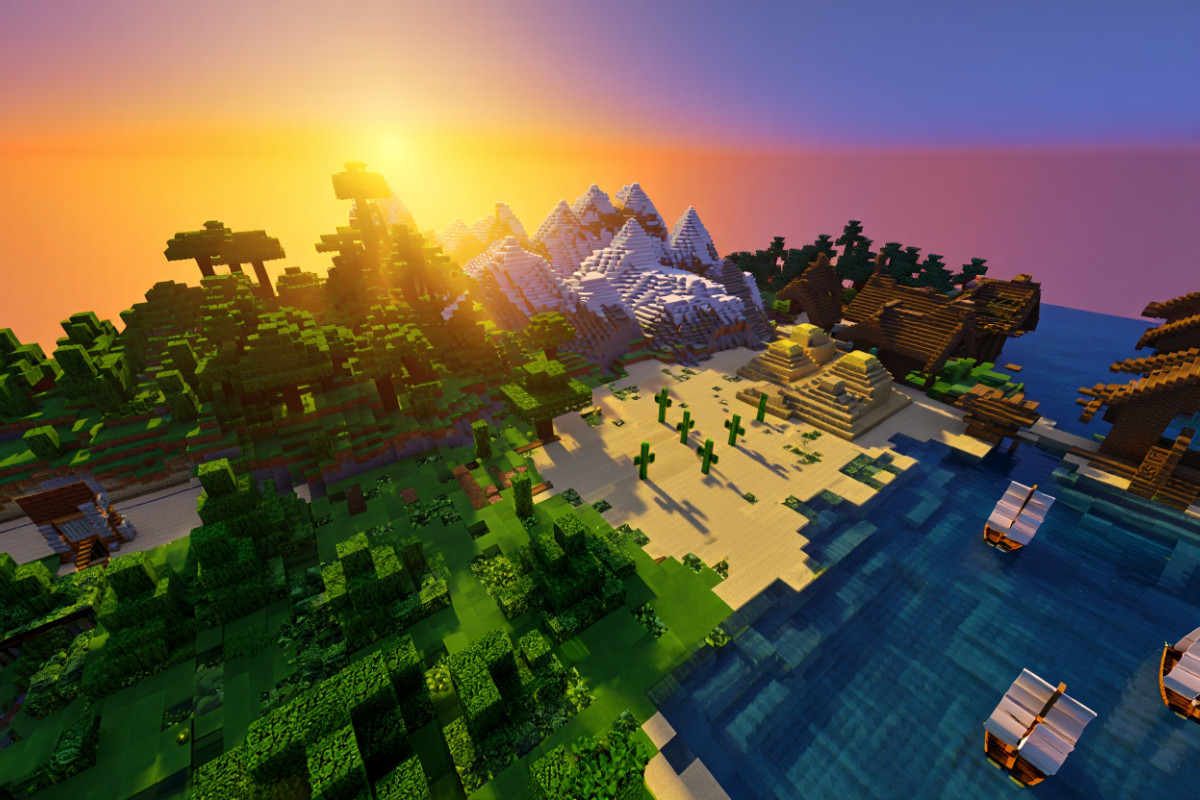
Exploring a vast Minecraft world can feel like searching for a needle in a haystack. A Minecraft seed map solves this by turning a world’s seed (its unique random-code) into a visual map of the terrain and features. In other words, a seed map tool lets you preview and navigate a world’s biomes, structures and resources before you ever set foot in the game. This means you can explore hidden worlds quickly: simply input a seed into a seed-map generator or viewer, and instantly see villages, temples, caves, and biomes laid out on the map. The rest of this guide will dive deep into how seed maps work, why they’re useful, and the best ways to use them (for both Java and Bedrock editions) to boost your Minecraft adventures.
What Is a Minecraft Seed Map?
A Minecraft seed map is an interactive map of a Minecraft world generated from its seed code. When you start a new Minecraft world, the game uses a seed (a number or text string) to determine every mountain, biome, village and ruin. In fact, the official Minecraft Wiki explains that “the same seed generates the same terrain every time”. A seed map tool taps into this by taking that same seed and plotting out the entire landscape in an interface.
According to MCSeedMap and other tools, a seed map is essentially “a visual representation of a Minecraft world generated using a specific seed,” showing terrain layouts, biome regions, and structures like villages or monuments. In practice, using a seed map you can discover:
-
Biomes and terrain: Colored regions showing biomes (deserts, jungles, forests, etc.) and geological features.
-
Useful structures: Locations of villages, Nether fortresses, strongholds, temples, shipwrecks, and more.
-
Rare features: Special areas like mushroom islands, jungle temples, or scenic mountain peaks.
-
Optimal build sites: Scenic places (cherry groves, snowy mountains) or high ground for bases.
Without a seed map, finding these by exploration alone could take hours. With a seed map, you can spot a village or an ocean ruin on the zoomed-out view, then hop directly there in-game. As one guide puts it, seed maps “make it easy to explore new places without searching randomly”.
How Seed Maps Work (Tools & Generators)
Using a Minecraft seed map generator or viewer is surprisingly easy. Most tools work like this:
-
Choose or get a seed: Either enter a known seed code, copy your current world’s seed (with
/seedin-game), or hit “Random” to let the tool pick a seed. -
Select game version: Pick the Minecraft version or edition (Java vs Bedrock) that matches the world’s generation.
-
Generate the map: The tool processes the seed and renders a 2D map. Biomes are colored, and structure icons (villages, temples, etc.) are placed.
-
Explore the map: You can pan/zoom the map, click markers, or use filters. Many tools let you highlight specific structures or biomes of interest.
-
Use the seed in-game: When you find a world layout you like, copy that seed value into Minecraft’s world creation, and you’ll start in the exact world you saw on the map.
For example, one Minecraft guide explains the seed-map workflow: you open the map tool, enter a seed or random letters, explore the generated world, and when you find a good seed, use it to create a new Minecraft world. Often these tools have extra features like “Random Seed” buttons, clickable legends, or biome-highlighting filters (surface, caves, etc.) to make exploration easy.
Figure: Example output from a Minecraft seed map viewer (MCSeedMap), highlighting biomes (in different colors) and marking structures like villages and ocean monuments. This interactive map helps players identify features like ocean monuments or slime chunk zones at a glance. It saves time – as one expert notes, seed map generators “save time by helping players quickly find seeds with desired biomes or structures”. For example, using the map’s legend and hover-tooltips, you can click any icon to get the exact in-game coordinates of that feature.
Basic Usage Steps
Most seed map tools offer similar steps:
-
Open the seed map tool (website or app). Many are free online (see next section).
-
Enter the seed code. Paste a known seed or leave it blank/randomize. Be careful: even a single digit or sign error (like omitting a negative) will produce a completely different world.
-
Select Edition/Version. Since world generation changed in updates, choose the correct Minecraft version (Caves & Cliffs, Nether Update, etc.) and edition (Java or Bedrock).
-
Generate and explore the map. Click “Generate” (or similar). The tool will draw the world. Pan around to see mountains, forests, deserts, etc., and look for structure icons.
-
Refine with filters. Most tools let you filter by structure type (villages, temples, slime, etc.) or view specific layers (surface, caves, nether). Use these to focus.
-
Save or copy the seed. When you spot a world you like, copy the seed code and enter it into Minecraft’s “Create World” menu.
By following these steps, you can preview any Minecraft world before playing. No more hours spent exploring just to find a village or a rare biome – the seed map does that legwork for you.
Seed Map Tools: Generators, Viewers, and Finders
A variety of seed map tools exist, each with slightly different features. Here are some popular ones:
-
MCSeedMap (MinecraftSeedMap) – A widely used browser-based seed map viewer and finder. It supports both Java and Bedrock, with biomes, terrain, and structures like villages or monuments shown. It also has a seed finder mode: enter desired structures or biomes and it searches seeds that match. As the creator explains, it “locate[s] biomes and structures and find[s] the seeds you want”.
-
Chunkbase Seed Map & Biome Finder – A popular site offering “Biome Finder” and “Seed Map” apps. The Seed Map app (Oct 2025 update) lets you view structures (villages, temples, dungeons, etc.) and even slime chunks on a world from any seed. Chunkbase also has a Biome Finder specifically for browsing biomes in overworld, nether or end.
-
MineAtlas – An older tool (Minecraft 1.8 era) that provides a biome map and various structure finders. MineAtlas describes itself as “a biome map of your Minecraft world seed” that also functions as a village finder, slime finder, ocean monument finder, and more. It requires Flash or special setup now, but historically it showed how seed mapping works.
-
Seed Map Viewer (minecraftforum.net) – This is a dedicated browser tool (mcseedmap.net) mentioned on Minecraft forums. It’s built on the “cubiomes” project and gives a live map you can interact with. For example, the developer notes that it “calculates biome and terrain estimation using a world seed, and displays a browseable map”. It even lets you save or share map images for given coordinates and version.
-
uNmINeD (Desktop) – If you prefer an offline application, uNmINeD is a free desktop mapper for Java/Bedrock worlds. It reads your local world files and renders a detailed map (you can export as image). Note: uNmINeD only maps already-explored chunks (your own save file). It’s great for viewing an existing world, but not a seed map generator. However, its website explicitly points seed-map users to tools like MCSeedMap for full-world generation maps.
-
Cubiomes Viewer (Desktop) – An open-source program (cubiomes) that can generate world maps from seeds (with high performance and accuracy). The mcseedmap.net site even points serious users to Cubiomes Viewer for advanced seed finding.
No matter which tool you pick, the concept is the same: input a seed, and get a visual map. Many are updated for the latest versions (Java 1.21+ and Bedrock 1.21+) to ensure accuracy. Always double-check that you’ve chosen the correct version; using the wrong one is a common mistake (e.g. a 1.17 seed on a 1.20 map will not match).
Java vs Bedrock: Edition Differences
One confusing topic is Java vs Bedrock editions. Since 2021, Java and Bedrock use the same algorithm for terrain & biome layout, but structure placement can differ between editions. In practice:
-
Biomes: A seed will produce the same arrangement of biomes in Java and Bedrock (v1.18+). This means mountains, forests, oceans, etc. are in the same places by and large.
-
Structures: Small differences exist. For example, some structures (like end cities or nether fortresses) might shift slightly or not generate identically in Bedrock. As one guide notes, “the primary difference [between Java and Bedrock seeds] lies in the placement of structures”.
Most web-based seed map tools default to Java. The sportskeeda generator advises using Java seeds for structures (it only supports Java) and using Bedrock seeds only for biomes if at all. MCSeedMap and Chunkbase allow selecting either edition. As a rule of thumb, if you’re playing on Bedrock (Windows 10, console, mobile), pick a “Bedrock” version in the tool. But if you want to find an exact feature like a stronghold, you’ll often get more reliable results using the Java option.
Always note which edition your world uses. For example, a Bedrock player should use a Minecraft seed map Bedrock mode if available, especially to match local generation quirks. And vice versa for Java. Many guides (and our FAQ below) emphasize this difference to avoid confusion.
Exploring Hidden Worlds Quickly
The main advantage of a seed map is speed. Instead of running around digging and exploring blind, you can spot hidden worlds at a glance. For example:
-
Locate Rare Biomes: Want a jungle temple or ice spikes? The seed map will show exactly where jungles or snowy biomes lie. No more wandering; just note the coordinates on the map and teleport there.
-
Find Villages and Ruins: Villages (with villagers and loot) are marked as icons. You can pick a spawn seed right next to one, or prepare armor before you venture there. Ocean monuments, shipwrecks, and nether fortresses are similarly pinpointed.
-
Identify Slime Chunks and Caves: Some tools (like Chunkbase) can highlight slime-spawn areas or cave biomes by altitude. If you’re hunting slimes or dripstone caves, the map saves lots of time.
-
Plan Builds with a View: If you want a mountain-top base or a lakeside home, the map shows scenic features. You might find a cherry grove or a mesa plateau by scanning the colors.
Because of this, many players use seed maps for hardcore or speedrun-style worlds. As one forum user wrote about MCSeedMap: “It’s great that players can get such detailed information about their world before they start building and exploring”. In short, a good seed map lets you explore without physically exploring, revealing hidden treasures instantly.
Top Seeds and Notable Examples
Seed maps not only help you use your own seeds, but also explore pre-generated seed lists. Many communities share “best seeds” that showcase cool worlds. For example, guides list seeds like a temple-surrounded spawn, an archipelago of islands, or villages on a great plains. (See the BrightChamps list for examples.) Using those seeds in a map tool shows the exact layout described.
Some example seeds from community lists:
-
Archipelago (Seed 124014738) – Spawns on several small jungle islands perfect for a survival base.
-
Savanna Plains with Villages (Seed 508164565) – Contains two Savanna villages near spawn for easy resources.
-
Snowy Slopes (Seed 4383755911485894549) – Multiple mountains and a nearby ruined portal under lake ice.
-
Titanic (Seed 1045298416328037846) – Features an iceberg, shipwreck, and ocean wreckage by spawn.
To see these for yourself, you could enter the seed into any seed-map viewer. It will highlight exactly where those temples, villages or biomes are located, saving you from trial-and-error in survival mode.
Minecraft Seed Map List and Downloads
Many seed map tools and wikis maintain lists of notable seed maps. These “seed map lists” compile interesting seeds for quick browsing. For instance, some Minecraft blogs have Minecraft seed map list articles featuring dozens of seeds sorted by theme (villages, jungles, survival islands, etc.). We cited BrightChamps above as one example list.
As for downloads, modern seed map tools often let you download or save maps:
-
Image Download: MCSeedMap, Chunkbase, and similar tools allow you to copy or download the map image. On MCSeedMap’s site, you can right-click or use the save option to get a PNG of the map.
-
Shareable Links: These tools also usually have a “share” feature that encodes the seed, position, and version in a URL. You can email or post that link, and others can open the exact same view.
-
Minecraft Worlds: If you’re looking for the actual worlds, some sites or communities offer world saves to download – though that’s different from seed maps. A seed map download generally means saving the visual map, not the game world itself.
In summary, you can often download the map output (to print, archive, or analyze) directly from the tool’s interface. This is handy if you want an offline reference or to share a “cheat sheet” of coordinates.
Using Seed Maps in Survival Mode
Seed maps are especially handy for survival mode. They let you prepare for survival by choosing a friendly starting location or locating early-game resources. For example:
-
Resource Gathering: Before starting your world, you can use the seed map to locate villages (for food and loot), temples (for gold and diamonds), or witch huts (for potions). This jump-starts your survival game.
-
Biome Variety: If you need specific biomes (like a mushroom island for Mooshrooms or a swamp for slime), the map pinpoints them. No more exploring blind for hours.
-
Survival Challenges: You can even create custom challenges by using a seed map. For instance, try starting on an island with no trees or near only desert and see if you can survive.
For instance, one community-recommended seed is 38843546815094752, noted for a peaceful spawn and many nearby villages. Using a seed map for this seed would show several villages at spawn – perfect for a safe start. Seed maps thus tailor your survival world: find a seed with exactly the biomes and structures you need.
Overall, a Minecraft seed map is a powerful survival tool. It cuts down early-game grind by highlighting exactly where to go. The added speed means you spend more time building and less time wandering.
FAQs about Minecraft Seed Maps
Q1: What exactly is a “seed” in Minecraft?
A: A seed is the code (number or phrase) that Minecraft’s world generator uses to create a world. It determines terrain, biomes, and structures. As one guide explains, “the same seed generates the same terrain every time”. You can use /seed in-game to see your world’s seed, then plug it into a seed map tool to visualize your world’s layout.
Q2: How do I use a Minecraft seed map generator/viewer?
A: Open a seed map website (like MCSeedMap or Chunkbase), enter the seed value (or click random), choose your Minecraft version/edition, and generate the map. The tool will display biomes and structures for that seed. Then explore the map by panning and zooming; most tools let you click on icons or colors to get coordinates. Finally, copy the seed into Minecraft’s Create-World screen to start playing in that world.
Q3: Are Minecraft Java and Bedrock seeds the same?
A: Generally yes for terrain layout: since Minecraft 1.18, Java and Bedrock use the same biomes and terrain for a given seed. However, structures can differ. In other words, a Bedrock world with Seed X will have the same mountains and rivers as a Java world with Seed X, but a village or temple might be slightly shifted or in a different number. Most seed map tools let you select the edition; if accuracy is crucial, use Java mode for better structure data.
Q4: Where can I find good Minecraft seeds or a list of seed maps?
A: Many websites, wikis, and forums collect “best seeds” with descriptions and codes. For example, gaming blogs often publish lists of top seeds (with themes like villages or temples). Reddit’s r/minecraftseeds is also full of player-shared seeds. Once you have a code, you can load it in a seed map to see exactly what makes it special.
Q5: Can I download or save the Minecraft seed map?
A: Yes. Most online seed map tools let you save or copy the map image. For instance, MCSeedMap includes an option to download the map screenshot or copy it to your clipboard. You can also copy the shareable link that contains the seed and view settings. This lets you keep a reference image or share the map with friends. (Note: “downloading a seed map” usually means saving the map image, not downloading the actual world.)
Q6: Is using a seed map considered cheating?
A: It depends on your playstyle. Some purists consider it “cheating” because it reveals hidden locations that you’d normally have to find by exploration. MCSeedMap’s FAQ even acknowledges this debate. However, many players view seed maps as a convenience tool, like using a map in another game. Ultimately, it’s up to you – using a seed map is no different than setting a seed or using commands; it just speeds up the early game.
Conclusion
A Minecraft seed map is a powerful tool for any player who wants to explore hidden worlds fast. By converting a random seed into a detailed world map, seed map tools let you quickly find the best biomes, villages, and structures without guesswork. Whether you’re planning a survival adventure, designing a custom world, or just curious about your seed, a seed map (generator/viewer) can show you exactly what’s out there. Use the steps and tips above to pick the right seed map tool (generator or finder), enter your seed, and start your journey with full knowledge of the landscape. With a seed map in hand, hidden worlds become open books – and amazing Minecraft adventures await!