
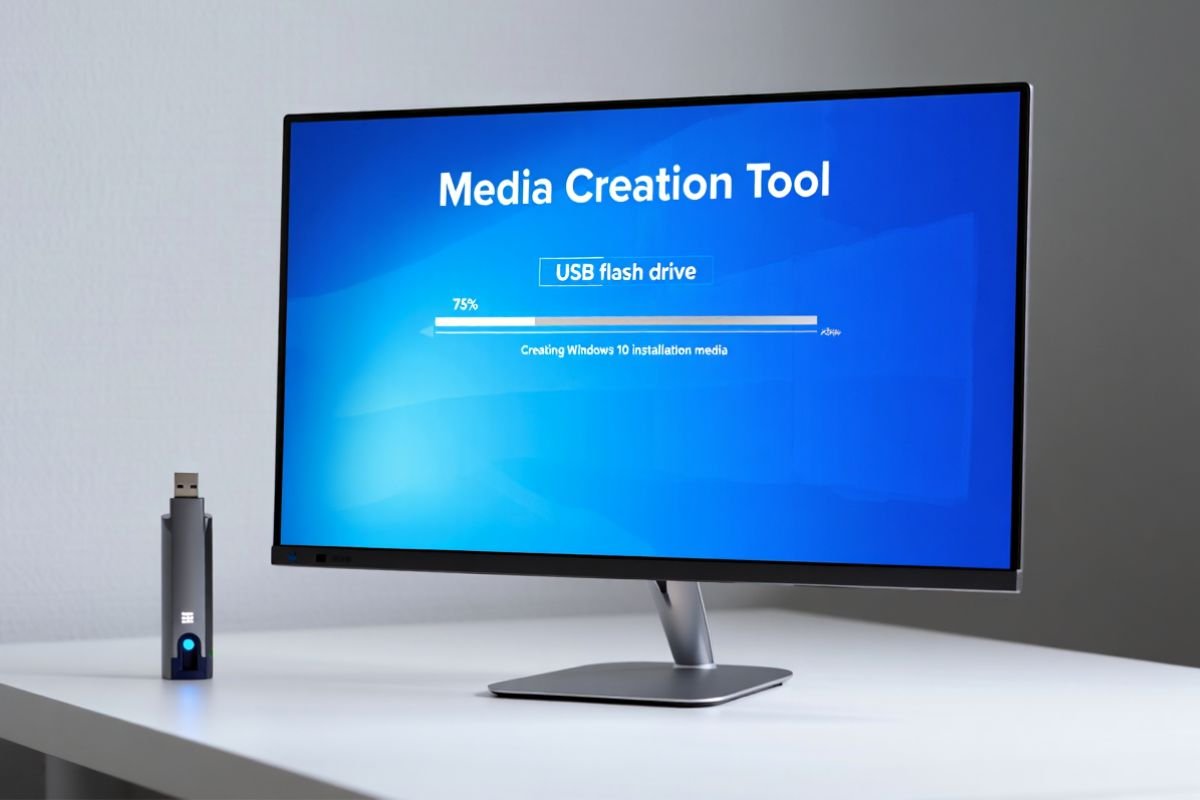
The Windows 10 Media Creation Tool is a free utility from Microsoft that lets you download the Windows 10 installation files and create a bootable USB drive or ISO file. In this comprehensive guide, we explain how to use the media creation tool to install Windows 10, whether upgrading your current PC or performing a fresh install. You’ll learn how to get and run the tool, create bootable USB or ISO media, and troubleshoot common issues. This step-by-step guide is designed to help beginners and advanced users navigate the media creation process smoothly.
Windows 10 remains widely used, powering many PCs around the world. For example, StatCounter reports that as of late 2025 about 41.74% of desktop users still run Windows 10. Even though Windows 11 is growing, this statistic shows why creating Windows 10 installation media is still relevant. (For Windows 11 installations, Microsoft offers a separate Media Creation Tool.) By following this guide and Microsoft’s official instructions, you’ll ensure your copy of Windows 10 is up-to-date and installed correctly.
What Is the Windows 10 Media Creation Tool?
The Media Creation Tool (MCT) is an official Microsoft program that downloads the Windows 10 operating system files and prepares them for installation. It can upgrade your current PC to Windows 10 or create installation media (USB flash drive, DVD, or ISO file) for another PC. Essentially, it automates the download of the latest Windows 10 ISO and helps you copy it to a USB drive or save it as an ISO file. This ensures you are installing a genuine, up-to-date copy of Windows 10 with all the latest patches.
Key Benefits of the Media Creation Tool
-
Official and Free: Microsoft provides the tool via its official Windows 10 download page, so downloading from the Microsoft site guarantees an authentic Windows 10 image.
-
Latest Build Included: Each time you use the tool, it fetches the newest Windows 10 build (including the latest security patches), saving you extra updates later.
-
Multiple Options: Use it to upgrade your current PC immediately or create installation media (USB/DVD/ISO) for other machines.
-
User-Friendly Wizard: The guided setup walks you through choosing language, edition, and architecture; even beginners can create installation media easily.
Using the Media Creation Tool means you don’t have to download the Windows 10 ISO manually from third-party sites. Instead, Microsoft’s tool does the work for you, making the process safer and easier. It works on Windows 7, 8.1, 10, or 11 (with their latest updates installed), so you can run it even on older systems to prepare media for any PC. In short, this tool simplifies the setup of Windows 10, whether you’re updating your own PC or preparing installers for multiple devices.
Downloading and Setting Up the Media Creation Tool
To begin, you need the tool itself. The Windows 10 media creation tool download is available on Microsoft’s official site. Go to the official Windows 10 download page. Under “Create Windows 10 installation media”, click Download tool now. This downloads the MediaCreationTool.exe file to your computer. (In fact, running the tool is straightforward: you simply run the downloaded executable, accept Microsoft’s license terms, and follow the wizard.)
Before running it, confirm you have:
-
Administrator Rights: You must run the tool as an admin. On Windows 10 or 11, right-click the downloaded file and choose Run as administrator. On Windows 7/8.1, make sure the latest Service Pack and updates are installed so the tool can run properly.
-
Internet Connection: A fast, reliable connection is recommended; you will be downloading 4–5+ GB of data. For best results, use a wired Ethernet connection to avoid interruptions. Also ensure your PC does not go to sleep or hibernate during the download, as this can cause errors.
-
USB Drive (8 GB+): If you plan to create a USB installer, have a blank USB flash drive with at least 8 GB space ready. Any existing data on it will be erased, so back up the USB first.
-
Sufficient PC Space: Ensure your current PC has enough free disk space (roughly 6–10 GB) to download the Windows 10 files and create the media.
Once downloaded, double-click MediaCreationTool.exe. The tool’s first screen shows the license terms; click Accept to proceed. The tool may then update itself to the latest version automatically. After that, you reach the main menu where you have two choices:
-
Upgrade this PC now: Select this to install Windows 10 on the computer you’re using. The tool will download Windows 10 and perform the in-place upgrade. During setup you’ll be asked whether to keep your personal files and apps or do a clean install.
-
Create installation media (USB flash drive, DVD, or ISO): Select this to prepare media for another PC or for a clean install later. This is the option to use if you want to make a bootable USB or ISO file for installing Windows 10 on a different computer.
If you just want to update your current PC to the latest version of Windows 10, the Upgrade this PC now path is straightforward. But if your goal is a fresh install or setting up another machine, choose Create installation media. We will focus on the media creation steps in the sections below.
Creating a Bootable USB Installer
A bootable USB drive is the most convenient media for installing Windows 10 today. Using the Media Creation Tool, you can make one in a few clicks. Follow these steps:
-
In the tool’s main menu, select Create installation media (USB flash drive, DVD, or ISO) and click Next.
-
Choose your Language, Windows edition (e.g. Home or Pro), and architecture (64-bit, 32-bit, or both). Usually, match the edition and architecture to the PC you’ll install on.
-
On the “Choose which media to use” page, select USB flash drive and click Next. The tool will now prepare to create a bootable USB.
-
Select your blank USB drive from the list (any drive showing 8+ GB). Click Next. The tool will download Windows 10 and automatically create the USB installation media. This can take several minutes or longer, depending on your internet speed and USB write speed.
-
When done, your USB drive is now a Windows 10 installation USB. It will contain Windows setup files and be configured as bootable. You can verify it by opening the USB drive in File Explorer – you should see folders like
boot,efi, andsources, plus files such assetup.exeandbootmgr. If these are present, the USB has been created correctly.
Figure: USB flash drives prepared for Windows 10 installation using the Media Creation Tool. The tool makes the USB drive bootable so you can start a new Windows 10 installation.
USB Tips
-
Blank USB: Always use a blank USB or back up its contents first. The tool will format the drive.
-
Fast USB/Port: Use a USB 3.0 drive and port if available. This speeds up the download and write process.
-
Different Drive Letters: Windows may assign a different drive letter (like D: or E:) to the USB. Make sure to pick the correct one in the tool.
-
Check Capacity: The USB needs at least 8 GB. If Windows shows your 8 GB drive as smaller (e.g. 4 GB), reformat the USB to get its full capacity.
-
Legacy vs. UEFI: The Media Creation Tool formats the USB so it can boot on both legacy BIOS and UEFI systems by default. If your PC is very old, enable “Legacy USB Boot” in BIOS/UEFI. If you have a UEFI system, Secure Boot can usually remain enabled.
Creating a Windows 10 media creation tool USB installer in this way avoids needing a DVD. Once the USB is ready, you can use it to boot any compatible PC and run Windows Setup.
Downloading a Windows 10 ISO File
If you prefer an ISO file (for burning to DVD or mounting in a virtual machine), the Media Creation Tool can also download the ISO:
-
Follow steps 1–2 above. When you reach the “Choose which media to use” screen, select ISO file and click Next.
-
Choose a folder location to save the ISO and click Save.
-
The tool will download the Windows 10 ISO image. This file will be several gigabytes in size. Wait for it to finish, then locate the downloaded
Windows10.isoon your computer.
You now have a Windows 10 ISO file. You can:
-
Burn it to DVD: Use a DVD burner to write the ISO to a blank DVD (usually a dual-layer DVD is required since the ISO can be around 5–6 GB).
-
Mount or Extract: In Windows 10 or 11, you can right-click the ISO and choose Mount, which creates a virtual DVD drive. Then run
setup.exefrom the mounted drive. Or use ISO mounting tools to do the same. -
Use in a VM: Attach the ISO to a virtual machine (Hyper-V, VMware, VirtualBox, etc.) as if it were a CD/DVD, and boot the VM from it.
Downloading an ISO can be useful if you want to save the installer for later, or create your own bootable media with additional tools. The Windows 10 media creation tool ISO option ensures you get the official, unmodified Windows 10 image.
Installing Windows 10 Step by Step
Once you have the Windows 10 bootable USB or DVD ready, follow these steps to install Windows 10:
-
Insert the USB/DVD into the PC you want to install or upgrade.
-
Boot from the media: Restart the PC and press the key to open the boot menu (often F12, F10, Esc, or Del) or enter BIOS/UEFI settings to set the USB/DVD as the boot device.
-
Windows Setup: When the PC boots from the installer, you’ll see the Windows Setup screen. Choose your language, time, and keyboard, then click Next and Install now.
-
Product Key: If prompted, enter your Windows 10 product key. If your PC was already activated with Windows 10 (digital license), you can click I don’t have a product key and skip this step; Windows will activate automatically later. Many modern PCs have the Windows key embedded in their firmware, so Windows Setup will detect it.
-
License Terms: Accept the license terms and click Next.
-
Installation Type: Choose Custom: Install Windows only (advanced) for a fresh clean install. (If you ran the tool from within Windows and want to upgrade while keeping files, you could choose Upgrade instead.)
-
Select Drive/Partition: Select the drive or partition where you want to install Windows 10. (Make sure you pick the correct one if you have multiple drives.) You can delete old partitions and create a new one on this disk if needed. Caution: The installer will format or overwrite the selected partition. Double-check you have chosen the right disk, as data on it will be erased.
-
Begin Install: Click Next. Windows will start copying files and installing. This process can take 20–60 minutes. Your PC will reboot a few times. Don’t turn off the PC during this.
-
Initial Setup: After the final reboot, go through the setup screens (choose your region, keyboard layout, connect to Wi-Fi, create or sign in to a Microsoft account, adjust privacy settings, etc.) as prompted.
After these steps, Windows 10 will be fully installed. You should then check Settings > Update & Security > Activation to confirm Windows is activated. If not, you can enter your product key there. Also go to Settings > Update & Security > Windows Update and run Windows Update to download any patches or driver updates released after your ISO was built.
Troubleshooting: Media Creation Tool Not Working
Sometimes the Media Creation Tool may fail or show errors. Common issues and fixes include:
-
Tool Won’t Launch or Crashes: Make sure you downloaded the tool from Microsoft and run it as administrator. Temporarily disable third-party antivirus or firewall if they block it. If you see an error code (e.g. 0x80070005), try rebooting and running again.
-
Download Errors (e.g. 0x800705B4): Check your internet. Use a stable connection and try again. Try disabling VPN or proxy servers. Some users have resolved this by re-enabling Windows Defender Firewall (if it was turned off) and disabling “Receive updates for other Microsoft products” in Windows Update settings.
-
USB Not Recognized or Too Small: Confirm your USB drive is at least 8 GB and is formatted (the tool will format it). Try a different USB port or a different USB stick. If you have an older USB showing a smaller size, reformat it first.
-
Tool Closes Unexpectedly: Microsoft recently noted that the latest Media Creation Tool (for Windows 11) “might not work as expected on Windows 10,” causing it to close unexpectedly. If this bug occurs, try using the tool on a different PC, or download the ISO on another machine and create media manually. Microsoft typically fixes these issues with updates.
-
Persistent Failures: If the tool still doesn’t work, you can try the Windows 10 Update Assistant (from Microsoft’s site) to update your PC directly. Or download the Windows 10 ISO file directly from Microsoft and use a tool like Rufus to make a bootable USB. However, always ensure your download comes from Microsoft to avoid malicious copies.
By following these troubleshooting tips and using official Microsoft sources, you can resolve most issues with the media creation tool.
Alternative Methods to Install Windows 10
Besides the Media Creation Tool, you can install or upgrade Windows 10 in other ways:
-
Windows Update: The simplest way to update your current PC is via Settings > Update & Security > Windows Update. Feature updates to Windows 10 can be delivered automatically.
-
Windows 10 Update Assistant: Microsoft’s Update Assistant (available on their website) will download and install the latest Windows 10 version on your PC. It only upgrades the current machine and cannot create media for another PC.
-
Direct ISO Download: On Windows 10/11, Microsoft’s download page allows saving the Windows 10 ISO directly. This is essentially what the tool does, but sometimes developers prefer to download the ISO and then use other tools (like Rufus) to make a USB. Just be careful to only download ISOs from Microsoft’s site.
-
Third-Party Tools: Tools like Rufus can create bootable USBs from ISOs. These are fine for writing a USB, but you still need the official ISO (use Microsoft’s media creator or download page). Never use untrusted “ISO downloader” apps, as they may distribute modified files.
While these alternatives exist, the Media Creation Tool is generally the most user-friendly way to get official Windows 10 install media.
Updating the Media Creation Tool
Microsoft periodically updates the Media Creation Tool itself, usually when releasing a new Windows 10 feature update. To ensure you have the latest tool and build:
-
Re-Download When Needed: Each time you need to install or create media, download a fresh copy of the tool. Microsoft will give you the newest version automatically.
-
Tool Versioning: After the Windows 10 22H2 release, Microsoft updated the tool so it downloads 22H2 by default. If you stored an old
MediaCreationTool.exe, throw it away and download again. -
Windows Updates: While the tool updates itself, ensure your current PC has the latest Windows Updates too. The tool reads some data from the OS; having an up-to-date Windows 10 can prevent compatibility issues.
Using the latest Windows 10 media creation tool update guarantees you get the newest Windows build and any bug fixes to the tool. If you encounter a persistent bug, check Microsoft’s announcements or support forums; they often release a fixed version of the tool quickly.
Windows 10 Media Creation Tool Guide – Additional Resources
-
System Requirements: Before installing, double-check your PC meets the Windows 10 minimum requirements (CPU, RAM, disk space).
-
PC Manufacturer: Visit your PC or motherboard maker’s support site for the latest firmware/driver updates before installing.
-
Windows 10 End of Support: Windows 10 will reach end of support on October 14, 2025. After that date, it will no longer receive free updates or security patches. Plan accordingly and consider upgrading hardware or moving to Windows 11. For more info on Windows 10 support and upgrade options, see Microsoft’s release notes.
-
Upgrade Paths: If you’re only interested in upgrading (not doing a fresh install), remember that the Windows 10 Update Assistant or Settings > Update & Security can handle upgrades as well.
-
Windows 11 Consideration: If your PC meets Windows 11 requirements, you might also consider using the Media Creation Tool for Windows 11 (on Microsoft’s Windows 11 download page) instead. However, the tool discussed here is only for Windows 10 installation.
Frequently Asked Questions (FAQs)
Q: Do I need a product key to use the Media Creation Tool?
A: No, you can download and run the tool without a key. The tool will create the installation media regardless. During installation, if your PC was already licensed for Windows 10, you can skip entering a key and it will activate via its digital license. If it’s a new PC or new install, you’ll enter the key or license later.
Q: Can I run the Media Creation Tool on Windows 7 or 8?
A: Yes. Microsoft provides versions of the tool that run on Windows 7 SP1, 8.1, 10, and 11. Simply download it on those older systems (make sure they have current updates installed) to create Windows 10 media. It does not install Windows 7 or 8; it only creates Windows 10 media.
Q: How is creating a bootable USB different from downloading an ISO?
A: A bootable USB means the tool formats the USB drive and copies files so that the computer can boot from it directly. An ISO is just a file. If you select USB in the tool, it takes care of formatting and making it bootable. If you download an ISO, you must burn it to DVD or use a utility (like Rufus) to make a USB bootable.
Q: What if I have a slow or flaky internet connection?
A: If your download keeps failing, try these: (1) Use a wired connection if possible; Wi-Fi can drop out. (2) Disable sleep mode so the PC stays awake. (3) If it still fails, download the ISO on another network or PC, then copy it over. The tool itself doesn’t resume downloads, so a stable connection helps.
Q: Will creating the USB erase other drives?
A: No. The Media Creation Tool only erases the USB drive (or selected drive during install). It will not affect any other drives unless you choose them during the Windows setup. When installing, double-check you select the correct drive/partition to avoid accidental data loss.
Q: How long does it take to create the Windows 10 installation media?
A: It depends on your internet speed and PC. Expect 10–30 minutes to download the files (3–5 GB) and another 5–15 minutes to write to the USB. The total time can range from 20 minutes to an hour or more.
Conclusion
The Windows 10 Media Creation Tool is your all-in-one solution for installing or reinstalling Windows 10. By following this guide, you can confidently download the tool, create a USB or ISO installer, and set up Windows 10 on your PC. Remember to back up your data, meet system requirements, and use a reliable USB drive. If you encounter issues, use the troubleshooting tips above or consult Microsoft’s support resources.
Now it’s your turn: download the Windows 10 Media Creation Tool from Microsoft’s site and start the Windows 10 installation process. If this guide helped you, please share it on social media to help others, or leave a comment below with your questions or feedback. Good luck with your installation!